
Receipt Upload from Buildertrend App for Apple
1. Open the Buildertrend app and log in to your account.
2. Click on More (hamburger icon) from the menu at the bottom right of the home screen.

3. Click on Photos under Files.

4. You will be asked to Selected a job if one is not already selected.
5. If you are in a job and want to choose another job, click the Photos button at the top. A list of jobs will pop up, choose a job. (You will see the current job you are on under Photos.)


6. Select the Receipt Upload folder.

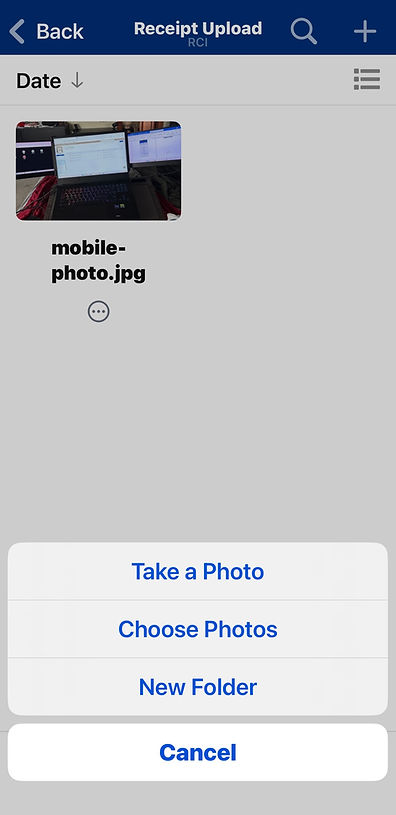
7. Click on the + sign at the top right of the screen.

8. If taking a new photo, select Take a Photo. Take a photo and choose Retake or Use Photo.
9. If choosing a photo from your phone, click on the Choose Photos button. Select desire photo.
10. Turn on Notify Users. (Very important! This lets accounting know a new receipt has been uploaded) And then choose Upload in the upper right-hand corner.

11. Add Notification Comments, as needed. Click Save in the upper right-hand corner.
